

Whether you are a developer launching your first cloud application, a business owner exploring digital infrastructure, or an IT professional managing enterprise resources — the Azure Portal is your command center in the Microsoft cloud ecosystem.
In this complete guide, we will walk you through everything you need to know about the Microsoft Azure Portal: what it is, how to use it, how to log in, whether it is free, and how to get started with a free Azure account. This is your one-stop resource for the Azure Portal — written in simple, beginner-friendly language.
What is the Azure Portal?
The Azure Portal (portal.azure.com) is a web-based, unified management interface provided by Microsoft. It allows users to build, manage, monitor, and deploy applications and services hosted on Microsoft’s global cloud infrastructure — all from a single browser window.
Think of it as a control panel for everything in the Microsoft cloud. Instead of using complex command-line tools, you get a visual, point-and-click dashboard that lets you manage thousands of cloud resources with ease.
The Azure Portal is a browser-based management platform by Microsoft that lets users create, configure, monitor, and manage Azure cloud services, including virtual machines, databases, networking, storage, and security — all from one centralized dashboard at portal.azure.com.
Key highlights of the Azure Portal include:
- Cloud management platform accessible from any browser
- No software installation required
- Supports all Azure services in one place
- Customizable dashboards for quick access
- Real-time monitoring and alerts
- Role-based access control for team management
Is Azure from Microsoft?
Yes, Microsoft Azure is 100% a Microsoft product. It is the official cloud computing platform of Microsoft Corporation, one of the world’s largest technology companies.
Microsoft Azure was first announced in 2008 under the name “Windows Azure” and officially launched in 2010. It was rebranded as “Microsoft Azure” in 2014 to reflect its cross-platform capabilities beyond just Windows environments.
Today, Azure operates from 60+ global data center regions, making it one of the largest cloud infrastructures in the world. It serves millions of businesses, from startups to Fortune 500 companies, offering over 200 cloud services.
Azure is deeply integrated with other Microsoft products, including:
- Microsoft 365 (Office 365, Teams, SharePoint)
- Windows Server and Active Directory
- GitHub and Azure DevOps
- Power BI, Dynamics 365, and more
What is the Use of Azure Portal?
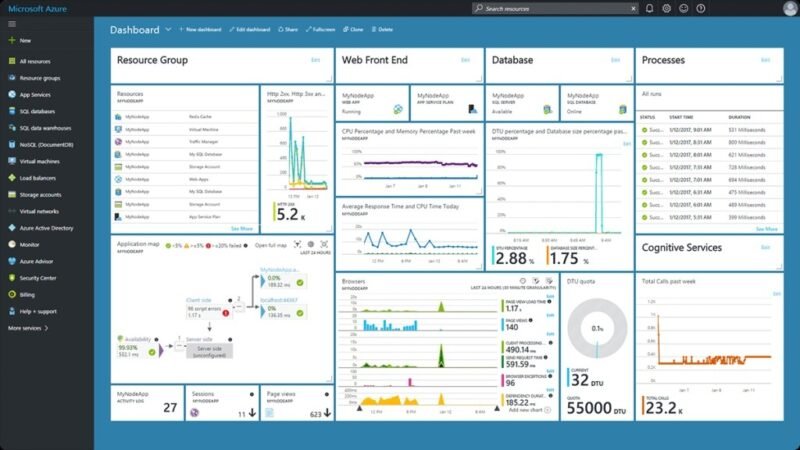
The Azure Portal serves as your single interface to access and manage the full spectrum of Azure cloud services. Here is a breakdown of its major uses:
| Feature | Purpose |
| Virtual Machines | Create, start, stop, resize, and monitor cloud-based servers (Windows or Linux) |
| Storage Accounts | Manage cloud storage for blobs, files, queues, and tables |
| Databases | Deploy and manage SQL, MySQL, PostgreSQL, Cosmos DB, and more |
| Networking | Configure virtual networks, firewalls, load balancers, and VPN gateways |
| Monitoring | Track performance, set alerts, and view diagnostics across all resources |
| Security Center | Get security recommendations, manage policies, and protect workloads |
| Cost Management | Analyze and optimize spending across your Azure subscriptions |
Key Features of Microsoft Azure Portal
The Microsoft Azure Portal packs a powerful set of features that make cloud management accessible to both beginners and experts:
- Customizable Dashboard: Personalize your home screen by pinning the services and resources you use most often.
- Resource Groups: Organize related Azure resources (like a VM, database, and storage) into logical containers for easier management and billing.
- Azure Marketplace: Browse and deploy thousands of pre-built applications, templates, and services from Microsoft and third-party vendors.
- Microsoft Defender for Cloud (Security Center): Get continuous security assessments and recommendations to harden your cloud environment.
- Azure Cost Management: Track your spending in real time, set budgets, and receive alerts to avoid bill surprises.
- Azure Monitor: View metrics, logs, and performance data for all your resources in one place.
- Azure Cloud Shell: Run PowerShell or Bash commands directly from your browser — no local installation needed.
- Role-Based Access Control (RBAC): Assign specific permissions to team members so they can only access what they need.
Microsoft Azure Portal URLs
Here are the most commonly used Microsoft Azure Portal URLs and what each one does:
| URL | Purpose |
| portal.azure.com | Main Azure Portal — manage all resources, services, and dashboards |
| azure.microsoft.com | Azure marketing and product information site; explore services and pricing |
| account.azure.com | Manage your Azure account, subscriptions, and billing information |
| management.azure.com | Azure REST API endpoint for programmatic resource management |
| shell.azure.com | Launch Azure Cloud Shell directly in your browser |
Bookmark portal.azure.com as your daily go-to URL for managing Azure resources.
How to Login to Azure Portal?
Logging in to the Azure Portal is simple. Follow these step-by-step instructions:
Step 1: Visit the Azure Portal
Open your browser and navigate to portal.azure.com. You will see the Microsoft sign-in page.
Step 2: Enter Your Microsoft Account
Type in your Microsoft account email address (this could be a personal Outlook/Hotmail account or a corporate Microsoft 365 email). Click “Next”.
Step 3: Complete Authentication
Enter your password. If your organization uses Multi-Factor Authentication (MFA), you may need to verify via the Microsoft Authenticator app, SMS, or email code.
Step 4: Access Your Dashboard
After successful login, you will land on your personalized Azure Portal dashboard, where you can see your pinned resources, recent activity, and navigation menu on the left.
Troubleshooting Common Login Issues:
- Forgot password? Click “Can’t access your account?” on the sign-in page to reset it.
- MFA not working? Ensure the Authenticator app is synced or contact your IT administrator.
- Account locked? Wait 15–30 minutes or contact Microsoft Support.
- Wrong tenant? Use the directory switcher in the top-right corner to switch between accounts or organizations.
- Browser issues? Try clearing cookies or using a different browser like Chrome or Edge.
Create Your Azure Free Account
Getting started with Azure is risk-free thanks to the Azure Free Account program. Here is everything you need to know:
Eligibility: Anyone with a valid Microsoft account, phone number, and credit/debit card for identity verification can create a free Azure account. No charges are made during the free period.
Free Tier Benefits Include:
- USD 200 in Azure credits valid for the first 30 days
- 12 months of popular free services (e.g., virtual machines, storage, databases)
- 25+ always-free services with no expiry
Note: Always verify the latest free credit amount and services at azure.microsoft.com/free before signing up, as offerings may be updated.
How to Create Your Azure Free Account (Step-by-Step):
- Go to azure.microsoft.com/free in your browser.
- Click “Start free”.
- Sign in with your Microsoft account or create a new one.
- Enter your country/region and agree to the terms.
- Verify your identity via phone number (SMS or call).
- Add a credit or debit card for identity verification (no charge during free period).
- Complete signup and access your Azure Portal dashboard.
Azure Portal “How To” Series
Here are quick tutorials to help you get started with the most common Azure Portal tasks:
How to Create a Virtual Machine
- In the Azure Portal, click “+ Create a resource”.
- Search for “Virtual Machine” and click “Create”.
- Select your subscription, resource group, VM name, region, and OS image.
- Choose your VM size (CPU/RAM), set an admin username and password.
- Configure networking (default VNet is auto-created).
- Click “Review + Create”, then “Create”. Your VM deploys in minutes.
How to Create a Storage Account
- Go to “Storage accounts” in the left menu or search bar.
- Click “+ Create”.
- Fill in subscription, resource group, storage account name, and region.
- Choose the performance tier (Standard or Premium) and redundancy option.
- Click “Review + Create” and then “Create”.
How to Deploy a Web App
- Search for “App Service” in the Azure Portal.
- Click “+ Create” and select “Web App”.
- Enter your app name, runtime stack (Node.js, Python, .NET, etc.), and region.
- Select your App Service Plan (Free tier available for testing).
- Click “Review + Create” and deploy.
- Use the Deployment Center to connect GitHub for CI/CD.
How to Monitor Resources
- Navigate to “Azure Monitor” from the left menu.
- Click “Metrics” to view performance data for any resource.
- Set up “Alerts” to get notified when CPU, memory, or cost exceeds a threshold.
- Use “Logs” to run Kusto Query Language (KQL) queries for deeper insights.
How to Configure Security Settings
- Go to “Microsoft Defender for Cloud” from the portal menu.
- Review the “Security Score” and recommendations.
- Enable Defender plans for services like VMs, SQL, and storage.
- Set up “Just-in-Time VM access” to reduce attack surface.
- Configure “Microsoft Entra ID” (formerly Azure AD) for identity management.
Is the Azure Portal Free?
Great news: accessing the Azure Portal itself is completely free. You can log in, explore the interface, and navigate dashboards at no cost. However, the cloud services and resources you create and run inside the portal do have associated costs.
| Category | Cost | Examples |
| Azure Portal Access | Free | Login, dashboard, navigation |
| Always-Free Services | Free (with limits) | Azure Functions (1M requests/month), Blob Storage (5 GB), Cosmos DB (400 RU/s) |
| Free Account Credits | USD 200 (first 30 days) | Use on any Azure service |
| 12-Month Free Services | Free for 12 months | VMs, SQL Database, Bandwidth |
| Pay-As-You-Go | Usage-based pricing | VMs, storage, compute beyond free limits |
Azure’s pay-as-you-go model means you only pay for what you use, and you can set spending limits and budget alerts to stay in control.
Azure Portal vs AWS Management Console
Both Azure Portal and AWS Management Console are leading cloud management interfaces. Here is how they compare:
| Feature | Azure Portal | AWS Management Console |
| Ease of Use | Clean, intuitive UI; great for beginners | Feature-rich but steeper initial learning curve |
| Microsoft Integration | Native integration with Microsoft 365, Teams, AD | Separate tools needed for Microsoft workloads |
| Enterprise Support | Strong hybrid cloud and enterprise focus | Broad enterprise support with extensive services |
| Learning Curve | Moderate; excellent documentation available | Moderate to steep; vast service catalog |
| Pricing Transparency | Clear Cost Management + Advisor tools | Detailed billing but complex pricing structures |
| Global Regions | 60+ regions worldwide | 30+ regions worldwide |
| Free Tier | USD 200 credit + 12 months free services | 12 months free tier with 25+ always-free services |
Azure Portal is particularly strong for businesses already using Microsoft tools, while AWS offers the broadest range of services overall.
Benefits of Using Microsoft Azure Portal
- Centralized Management: Manage all your cloud resources from a single, unified dashboard. No need to switch between different tools or consoles.
- Scalability: Scale resources up or down instantly to meet demand without any hardware investment.
- Enterprise-Grade Security: Azure is certified across 100+ compliance standards, including ISO 27001, SOC 2, GDPR, and HIPAA.
- Automation: Use Azure Automation, Logic Apps, and Azure Functions to automate repetitive tasks and workflows.
- Cost Optimization: Azure Cost Management provides real-time spending visibility, budgets, and AI-powered recommendations to reduce wasteful spending.
- Global Availability: Deploy applications close to your users with Azure’s 60+ data center regions for low latency and high availability.
- Hybrid Cloud Ready: Azure Arc lets you manage resources across on-premises, multi-cloud, and edge environments from the same portal.
Common Azure Portal Issues and Solutions
| Issue | Cause | Solution |
| Login Failure | Wrong credentials or expired password | Reset password at account.microsoft.com |
| MFA Not Working | App not synced or phone unavailable | Use backup verification method or contact IT admin |
| Permission Denied | Insufficient RBAC role assigned | Request Owner or Contributor role from admin |
| Slow Dashboard | Too many pinned tiles or large data sets | Reduce pinned tiles; clear browser cache |
| Subscription Not Visible | Wrong directory or inactive subscription | Switch directory from top-right menu; check subscription status |
| Billing Errors | Incorrect resource usage or billing cycle issues | Check Cost Management + Billing; contact Azure Support |
Best Practices for Azure Portal Users
Security Best Practices
- Enable Multi-Factor Authentication (MFA) for all accounts
- Use Microsoft Entra ID (Azure AD) for centralized identity management
- Apply the principle of least privilege when assigning roles
- Enable Microsoft Defender for Cloud and act on security recommendations
Resource Organization
- Use consistent naming conventions for all resources
- Group related resources into Resource Groups by project or environment
- Apply Tags (key-value pairs) to resources for better cost tracking
- Use Management Groups for multi-subscription governance
Cost Control
- Set budgets and alerts in Azure Cost Management
- Delete unused resources and deallocate stopped VMs
- Use Azure Advisor recommendations for cost optimization
- Choose reserved instances for predictable workloads to save up to 72%
Monitoring
- Set up Azure Monitor alerts for critical metrics (CPU, memory, availability)
- Enable diagnostic logs for all production resources
- Use Application Insights for application performance monitoring
Access Management
- Review and audit role assignments regularly
- Use Privileged Identity Management (PIM) for just-in-time access
- Enable Azure Policy to enforce organizational compliance standards
Frequently Asked Questions (FAQs)
What is the Azure Portal?
The Azure Portal is Microsoft’s web-based cloud management interface at portal.azure.com. It allows users to create, manage, monitor, and deploy cloud services including virtual machines, databases, networking, storage, and security from one centralized dashboard.
What is the use of Azure Portal?
The Azure Portal is used to manage all Microsoft Azure cloud services — from creating virtual machines and databases to monitoring costs, managing security, and deploying web applications. It replaces the need for complex command-line tools with a visual interface.
How to login to Azure Portal?
Visit portal.azure.com, enter your Microsoft account email and password, complete Multi-Factor Authentication if required, and you will land on your Azure dashboard.
Is Azure Portal free?
Yes, the Azure Portal interface itself is free to access. However, the Azure cloud services you use within the portal are charged based on consumption. New users get USD 200 in free credits for 30 days plus 12 months of selected free services.
Is Azure from Microsoft?
Yes, Microsoft Azure is a Microsoft product. It is Microsoft’s official cloud computing platform, launched in 2010, and operates across 60+ global data center regions.
What services can be managed through Azure Portal?
Azure Portal supports 200+ services including virtual machines, Kubernetes clusters, SQL/NoSQL databases, blob storage, virtual networks, AI/ML services, IoT hubs, DevOps tools, and more.
Can beginners use Azure Portal?
Absolutely. Azure Portal is designed with a user-friendly visual interface. Microsoft also provides extensive documentation, tutorials, and a free learning platform called Microsoft Learn at learn.microsoft.com.
How secure is Azure Portal?
Azure Portal is highly secure. It supports MFA, role-based access control, Microsoft Entra ID integration, and is backed by Microsoft’s compliance with 100+ industry standards including ISO 27001, SOC 2, GDPR, and HIPAA.
What is Azure Marketplace?
Azure Marketplace is an online store within the Azure Portal that offers thousands of pre-built applications, solutions, and services from Microsoft and third-party publishers — ready to deploy in minutes.
How do I create a free Azure account?
Visit azure.microsoft.com/free, click “Start free”, sign in with your Microsoft account, verify your identity via phone, add a card for verification (no charges during free period), and start exploring Azure with USD 200 in credits.
Conclusion
The Microsoft Azure Portal is more than just a management dashboard — it is the central hub for your entire cloud journey. Whether you are deploying your first virtual machine, building a scalable web application, managing enterprise security, or optimizing cloud costs, the Azure Portal gives you the tools and visibility to do it all from one place.
With a free Azure account, anyone can get started today — no large upfront investment required. The portal’s intuitive design, combined with Microsoft’s deep documentation and global support network, makes it one of the most accessible and powerful cloud platforms available.
Must Read: HPCL Business Portal Login & Registration Guide 2026
